| Support Category: LMS Navigation |
| Specialist Notes: |
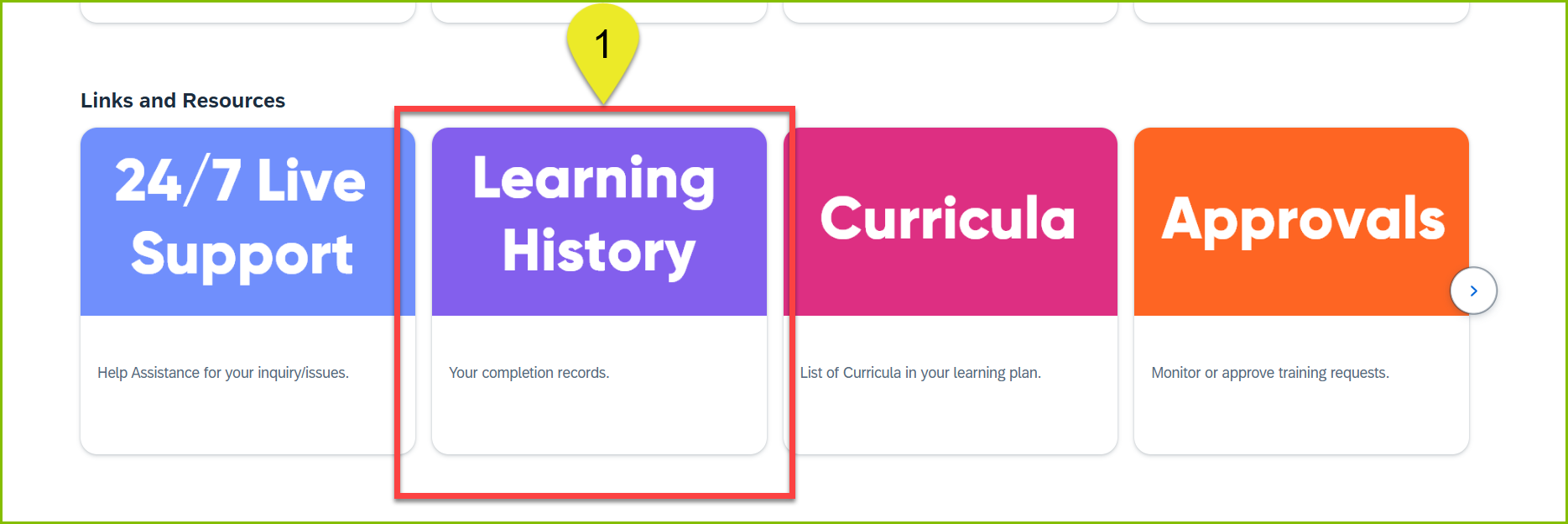
- Users may search for completed training under the Learning History section of the Learning Center.
- Users may also print a transcript of all of their courses by selecting the Reports link on the main learning center home page and selecting 'Run Learning History (CSV)' will have to select a 'completed from' date range, as the system has a file limit and will not populate results if a timeframe is not specified.
| Canned Response Code: /Dexcom06 |
Standard Response: |
1. Kindly navigate to the 'My Learning' Page by clicking 'Home' at the top left of the page, then selecting 'Learning' in the dropdown.
2. Locate the 'Learning History' section to view your completed training. You can view your most recently completed training there or you can select the 'View All' button to get a full listing of your history.
3. Click on the printer icon to the right of the course title.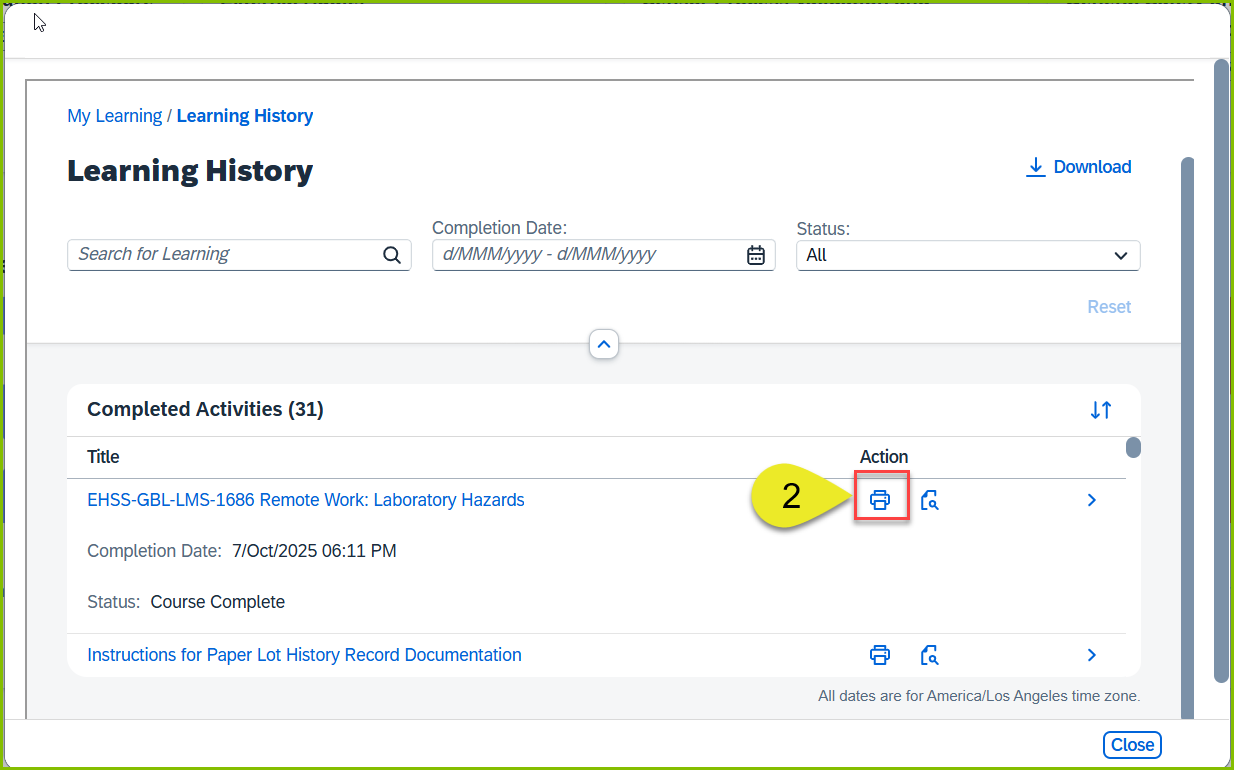
NOTES:
- From the completion page, you will see options that can help you narrow a search for a specific course such as completion date, title, and status.
- You may also run a report of all the courses you've taken by selecting the 'Reports' hyperlink found in the dropdown menu in the top right of the home page, clicking 'Reports' and then selecting 'Run Learning History CSV'. Please note that the system does have a file limit and therefore will not populate results if a 'Completed From' date range is not selected.
